Your LinkedIn job search country can be changed without changing the country displayed on your profile. Enter the target city, region or country in the job-search location field—or describe it directly in LinkedIn’s AI-powered job search—then refine the results and save a focused alert.
Quick answer: Open LinkedIn Jobs, describe the role you want, enter the target country or city, run the search and review the location and workplace restrictions in each description. Changing the search location affects the results you see. Changing your profile location is a separate action and should reflect how you genuinely want to present your location to other members and recruiters.
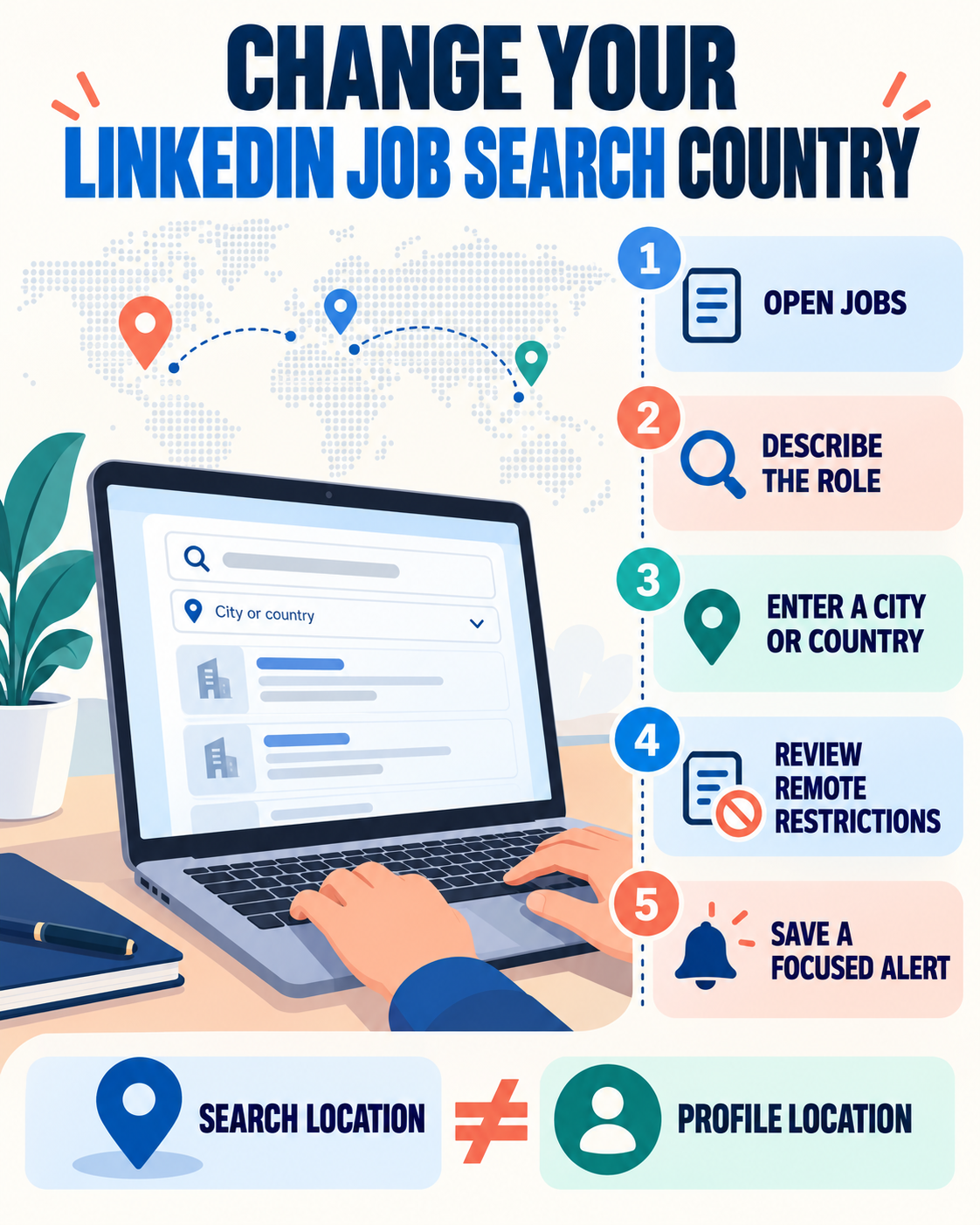
Search Location and Profile Location Are Different
Three LinkedIn location settings can influence a job search in different ways:
- Job-search location: the city, region or country used for a particular search.
- Profile location: the Country/Region and city shown in the introduction section of your profile.
- Job preferences: locations and workplace types you may select when using Open to Work or related preference features.
You do not need to edit your profile every time you explore jobs in another country. A student in Morocco, for example, can search for roles in France, Canada or the United Kingdom while keeping an accurate profile location.
How to Change Your Job Search Country on LinkedIn
On desktop
- Open the Jobs area in LinkedIn.
- Enter a role, skill combination or natural-language description of the work you want.
- Enter the target city, region or country in the location field, if that field is available in your interface.
- Run the search and inspect several results before adding many filters.
- Refine by date posted, experience level, employment type, company, remote, Easy Apply or other available controls.
- Save the search as an alert only after the results consistently match your target.
LinkedIn is moving members to an AI-powered job-search experience and gradually retiring parts of classic search. In the newer experience, you can often include the country directly in a query, such as “entry-level customer success jobs in Spain” or “remote French-speaking marketing roles in Europe.” Available controls can differ by account, language, device and rollout stage.
On the LinkedIn mobile app
- Tap Jobs.
- Tap the search field and describe the role you want.
- Add the city or country in the location control or within your query.
- Apply only the filters that support your search strategy.
- Open individual listings to confirm the actual work location and eligibility requirements.
If you select Current location, LinkedIn may request device or browser location access. That option is designed to search near where your device is located; it is not the right choice when you deliberately want another country.
How to Search Another Country with LinkedIn’s AI Job Search
LinkedIn’s current help documentation says AI-powered job search is available worldwide and lets members describe the role they want in ordinary language. A useful query combines the role, level, field and location:
- “Entry-level finance roles in Amsterdam posted this week”
- “Marketing internships in Germany that use English”
- “Remote data analyst roles based in Canada”
- “Customer support jobs in Portugal requiring French”
Be precise without packing several incompatible targets into one query. If you would consider both the Netherlands and Belgium, run two searches and save two alerts. Separate searches make it easier to judge the market and prevent one country’s results from hiding another’s.
How to Change the Country on Your LinkedIn Profile
Edit your profile location only when you want the location displayed to members and recruiters to change. According to LinkedIn Help, the desktop steps are:
- Click Me and choose View Profile.
- Select the edit icon in your introduction section.
- Scroll to Country/Region.
- Choose the appropriate country or region.
- Add the city or postal code options shown for that country.
- Save the change.
On mobile, open your profile, edit the introduction section and update Country/Region. Interface wording may change, so use LinkedIn’s current Help page if a control is not where you expect.
Should you change your profile location before moving?
Use a location that is truthful and not misleading. If you are planning a move, you can communicate the plan in your About section or job preferences—for example, “Relocating to Madrid in January” or “Open to roles in Madrid with relocation support.” Avoid suggesting that you already live somewhere when you do not.
Accurate information makes conversations about start dates, on-site requirements, work authorization and relocation more straightforward.
Searching for Remote Jobs in Another Country
A remote label does not necessarily mean “work from anywhere.” A remote job may still be restricted to a country, state, tax jurisdiction or time zone. The employer may require residency, a local payroll arrangement or existing work authorization.
Before applying, look for:
- the employer’s stated hiring country or region;
- time-zone overlap requirements;
- occasional office or travel expectations;
- language requirements;
- work-authorization or sponsorship information;
- whether the arrangement is employment or independent contracting.
Do not assume that selecting Remote overrides the location attached to a vacancy. Read the complete description and use the employer’s official application page when one is provided.
How to Set Better International Job Alerts
Create a separate alert for each meaningful combination of role and location. A practical structure is:
- one target role + one country;
- one adjacent job title + the same country;
- one remote alert with the permitted region included;
- one city-level alert when the market is concentrated in a major city.
For example, a job seeker targeting Germany might create separate alerts for “Data Analyst — Germany,” “Business Intelligence Analyst — Germany” and “Remote Data Analyst — Germany.” This is more useful than one broad alert containing unrelated titles and multiple countries.
Use our LinkedIn job search filters guide to refine results without excluding suitable vacancies too early.
Why LinkedIn Still Shows Jobs from the Wrong Country
Your query is too broad
Add the target country or city directly to the search description. Broad role-only searches can produce personalized or nearby results.
The vacancy is remote but geographically restricted
Remote listings may be associated with a country even when the work is performed off-site. Read the employer’s location details.
Your profile and search history influence personalization
LinkedIn says search results may consider profile information and search activity. Running several focused searches can help you evaluate the intended market, but it does not guarantee that every result will match perfectly.
A saved alert still uses an older location
Review the alert’s query and location. If it cannot be edited cleanly, create a new focused alert and turn off the irrelevant one.
The interface is changing
LinkedIn is rolling out AI-powered job search and reintroducing some classic controls over time. Two accounts may not display identical options on the same day.
International Job Search Checklist
- Search by a specific role and target country.
- Run separate searches for separate countries.
- Check the actual job location on every listing.
- Confirm whether “remote” has geographic limits.
- Check work-authorization and sponsorship wording.
- Research local job-title variations and spelling.
- Keep your profile location accurate.
- State a genuine relocation plan clearly when relevant.
- Use focused alerts rather than one global alert.
- Track applications by country, role and status.
Common Mistakes to Avoid
- Changing your profile unnecessarily: a search can use another country without changing your displayed location.
- Assuming remote means global: always verify the permitted work location.
- Misrepresenting where you live: communicate relocation plans honestly.
- Ignoring work authorization: a match in skills does not establish legal eligibility.
- Using one alert for many countries: separate alerts make results easier to assess.
- Applying before checking the employer: verify the company and application domain, especially for unfamiliar international listings.
Frequently Asked Questions
Can I search for jobs in another country on LinkedIn?
Yes. Enter the target country or city in the location field or include it in an AI-powered job-search query. Then refine and review the individual listings.
Does changing my job-search country change my profile location?
No. A job-search location controls a particular result set. Your profile location is edited separately in your profile’s introduction section.
Should I change my LinkedIn location to the country where I want to work?
Only if the location accurately represents you. If you plan to relocate, state that plan clearly instead of implying you already live there.
Why can’t I see the same filters as another user?
LinkedIn is transitioning to AI-powered job search, and features can vary by rollout stage, account, language and device.
Can I apply for a remote job in another country?
You can apply when you meet the employer’s stated requirements, but remote roles may still be limited by residency, payroll, work authorization or time zone. Check the listing carefully.
Use Location as a Search Variable, Not a Shortcut
Changing your LinkedIn job-search country is simple; evaluating the results requires more care. Keep searches focused, verify each listing’s actual location and be transparent about relocation and work eligibility.
Next, learn how to use LinkedIn for job hunting and organize opportunities with our job application tracking guide.