
LinkedIn Job Search Filters: Find Better-Matched Jobs Faster
LinkedIn job search filters help you reduce a broad list of openings to roles that better match your location, experience, preferred work arrangement and application strategy. The goal is not to create the smallest possible list. It is to remove obvious mismatches while keeping enough relevant opportunities to compare.
Quick answer: Start with a clear description of the role you want, then apply location, experience level, employment type and date posted. Add Remote, Easy Apply, In my network or Under 10 applicants only when they support your strategy. Review the first page before narrowing further, and save separate alerts for distinct role-and-location combinations.
Interface note for 2026: LinkedIn is rolling out AI-powered job search and gradually retiring parts of classic job search. Available controls can differ by account, language, device and rollout stage. LinkedIn currently lists Date posted, Company, Experience level, Employment type, Remote, Easy Apply, In my network and Under 10 applicants as available filters in its AI-powered experience.
What Are LinkedIn Job Search Filters?
LinkedIn job search filters are controls that refine search results using criteria such as when a job was posted, the employer, the required experience level and the employment type. In the newer search experience, you can also describe what you want conversationally—for example, “entry-level customer success jobs in healthcare posted this week”—and then use the available filters to narrow the results.
Filters cannot confirm that a vacancy is suitable, legitimate or still open. They organize the result set. You still need to read the job description, verify the employer and assess the requirements before applying.
How to Use LinkedIn Job Search Filters
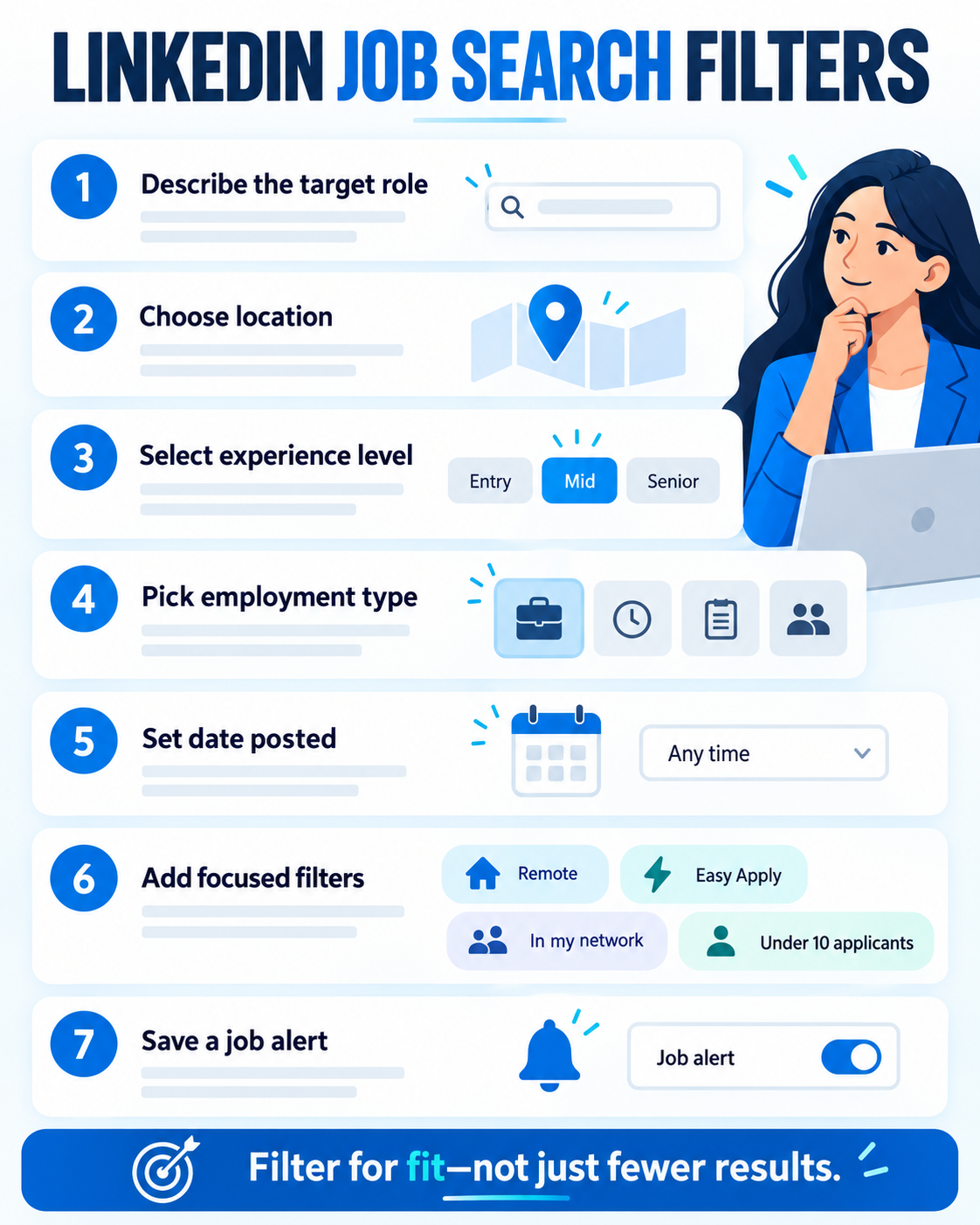
- Open Jobs: Select the Jobs area in LinkedIn.
- Describe the role: Enter a specific title, skill combination or natural-language description.
- Add a location: Choose a city, region or country when location matters.
- Run the search: Review the initial results before adding every available filter.
- Apply essential filters: Start with experience level, employment type and date posted.
- Add strategic filters: Use Remote, Easy Apply, In my network or Under 10 applicants when helpful.
- Check relevance: Open several results and see whether they match your intended work.
- Adjust and save: Broaden or narrow the search, then create a focused job alert.
LinkedIn may also show suggested filters based on your query. These suggestions can help you discover useful specialties, but do not assume every suggestion represents a requirement you should add.
LinkedIn Job Search Filters Explained
Date posted
The Date posted filter helps you prioritize newer listings. LinkedIn’s classic options have included the past 24 hours, past week and past month. In a competitive search, recent listings can be useful because the hiring process may still be early. However, “newer” does not automatically mean “better,” and an older vacancy may still be actively recruiting.
Good starting point: Use the past week for regular searching and the past 24 hours for a short daily review. Broaden the date range when your target role is specialized or your location has fewer openings.
Company
The Company filter is useful when you have a researched employer list, want to compare openings at similar organizations or are following companies in a specific sector. Do not restrict the search to famous companies only. Smaller employers may use different titles for comparable work.
Experience level
Experience-level labels are useful but imperfect. Employers may categorize similar roles differently, and the job description matters more than the filter label. If you are early in your career, test both Internship and Entry level where available. If you are changing careers, compare the responsibilities with your transferable experience instead of automatically choosing only one level.
Avoid selecting every level. That often recreates the unfiltered result set and adds senior roles that are unlikely to fit.
Employment type
Employment type may include full-time, part-time, contract, internship and volunteer opportunities. Select more than one only when you would genuinely accept each option. Contract work can be useful for some transitions, but check duration, payment terms, benefits and employment status carefully.
Remote
The Remote filter can surface roles intended for off-site work. Read the full description because “remote” may still be limited to a country, state, time zone or work-authorization region. Some jobs may require occasional office visits or travel.
If results are too narrow, search separately for Remote and for a target location. Combining distinct alerts makes it easier to compare opportunities without mixing incompatible requirements.
Easy Apply
Easy Apply identifies jobs where you can apply through LinkedIn instead of being redirected to an external site. It is a convenience filter—not a quality signal. A suitable employer may use its own careers portal, while an Easy Apply listing may attract many applications.
Use Easy Apply when it saves time, but do not exclude strong opportunities simply because they require an external application. Tailor your application to the role either way.
In my network
In my network can help you identify employers where you have relevant connections. A connection can provide context about the organization or role, but they do not owe you a referral. Contact people thoughtfully, mention the specific role and ask a focused question.
If you have already applied, use our examples for messaging a recruiter on LinkedIn after applying.
Under 10 applicants
This filter can help you find listings with a lower displayed applicant count. Treat the number as directional, not as a guarantee of total competition: applications completed outside LinkedIn may not be represented in the same way. A low count also says nothing about whether you meet the requirements.
Use it to discover openings, then evaluate the job normally. Do not apply only because the displayed number is small.
Best LinkedIn Filter Combinations by Goal
| Goal | Suggested starting combination | What to check |
|---|---|---|
| Entry-level role | Entry level + Past week + Full-time | Whether the description still asks for several years of experience |
| Internship | Internship + Past month + Target location | Eligibility, dates, compensation and work authorization |
| Remote work | Remote + Past week + Relevant experience level | Country, time-zone, travel and residency restrictions |
| Career change | Target function + Entry or Associate level + Past month | Transferable skills and realistic qualification gaps |
| Fast daily review | Past 24 hours + Preferred employment type | Relevance before speed |
| Network-led search | In my network + Target companies or field | Who can offer useful context—not only referrals |
| Lower displayed competition | Under 10 applicants + Past week | Fit, legitimacy and how the applicant count is represented |
These are starting points, not rules. Run separate searches when you have multiple target roles. Combining unrelated titles in one alert usually produces noisy results.
How to Search with LinkedIn’s AI-Powered Job Search
LinkedIn’s newer job search can interpret natural-language requests rather than relying only on exact keywords. Be specific about the role, specialty, location, experience level, industry or working arrangement.
Useful query structures include:
- “Entry-level data analyst jobs in healthcare in Toronto posted this week”
- “Remote customer success roles in Europe requiring French”
- “Marketing coordinator jobs at nonprofit organizations in New York”
- “Project management roles in my network with under 10 applicants”
Do not pack conflicting preferences into one sentence. If you want both remote and hybrid opportunities, run two searches. If two job titles represent different responsibilities, create separate alerts.
How to Fix Irrelevant LinkedIn Job Results
Use a more precise role description
Replace a broad query such as “marketing” with a specific target such as “email marketing coordinator for B2B software.” Add the function or specialty that distinguishes suitable jobs.
Remove one restrictive filter
If the search returns too few roles, broaden one variable at a time. Expand Date posted, add a nearby location or test an adjacent experience level. Changing everything at once makes it difficult to learn which filter caused the problem.
Check title variations
Employers use different titles for similar work. A customer success role might appear as Client Success Specialist, Customer Onboarding Specialist or Account Coordinator. Search related titles separately and compare the actual responsibilities.
Improve your profile alignment
LinkedIn says its job-search results may use information from your profile and search activity for personalization. Keep your headline, skills and job preferences accurate. Our guide on LinkedIn keywords for your profile shows how to use relevant terminology without keyword stuffing.
LinkedIn Job Alert Strategy
After refining a search, turn on a job alert when the results consistently match your target. Use several focused alerts instead of one broad alert:
- One alert for each distinct target role
- Separate alerts for remote and location-based work
- Separate alerts for internships, contract work and permanent roles
- A recent-postings search for your highest-priority role
Name or recognize each alert by its role-and-location combination. Review alerts on a sustainable schedule and track strong opportunities outside your inbox. See our guide to keeping track of job applications.
Common LinkedIn Job Filter Mistakes
- Applying every filter immediately: You may hide suitable roles before understanding the market.
- Treating labels as perfect: Experience level and workplace labels do not replace reading the description.
- Using Easy Apply as the main criterion: Convenience is not the same as fit.
- Assuming Remote means worldwide: Many remote roles have geographic restrictions.
- Chasing low applicant counts: A displayed count does not establish quality or total competition.
- Mixing unrelated targets: Separate searches produce clearer results and alerts.
- Ignoring suspicious listings: Verify the employer, application domain and contact details before sharing personal information.
- Applying without tailoring: Filters help you find a role; they do not replace a relevant application.
Frequently Asked Questions
What filters are available in LinkedIn job search?
LinkedIn currently lists Date posted, Company, Experience level, Employment type, Remote, Easy Apply, In my network and Under 10 applicants for its AI-powered job-search results. Your available controls may differ as the interface rolls out.
Can I sort LinkedIn jobs by newest?
Some LinkedIn interfaces have offered Most recent and Most relevant sorting. LinkedIn’s current AI-search guidance says certain classic controls are being reintroduced over time, so availability can vary. Use Date posted when a newest-first sort is not visible.
Why did my LinkedIn job search filters change?
LinkedIn is transitioning members to an AI-powered job-search experience and gradually retiring classic job search. Features can change during the rollout, so two accounts may not display identical controls.
Should I use the Easy Apply filter?
Use it when applying within LinkedIn is convenient, but do not make it your only search. Strong employers may direct candidates to their own application systems.
How many LinkedIn job alerts should I create?
Create enough alerts to keep distinct targets separate, but not so many that you stop reviewing them. A practical starting point is one alert per role-and-location combination.
Do LinkedIn filters guarantee relevant jobs?
No. Filters and AI search narrow or rank results, but you must verify responsibilities, qualifications, employer details and working conditions yourself.
Use Filters to Improve Fit, Not Just Reduce Results
The best LinkedIn job search filter strategy begins with a clear target. Apply a few essential filters, inspect the results and adjust one variable at a time. Save focused alerts only after the search repeatedly produces relevant opportunities.
Continue with our complete guide on how to use LinkedIn for job searching, or use the LinkedIn Guide for Job Seekers to improve your profile, keywords and outreach.