

If you are trying to learn how to turn off AI job search on LinkedIn, the short answer is important: LinkedIn does not currently document a universal switch that returns every member to the old classic job-search experience. LinkedIn says it began gradually retiring classic job search in September 2026, making AI-powered search the main experience for members worldwide.
That means you may not see an “AI off” button in Jobs, even if search results feel broader or less predictable than before. You can still make searches more precise, adjust job preferences, manage alerts, provide feedback and review privacy settings. This guide explains what is—and is not—currently possible.
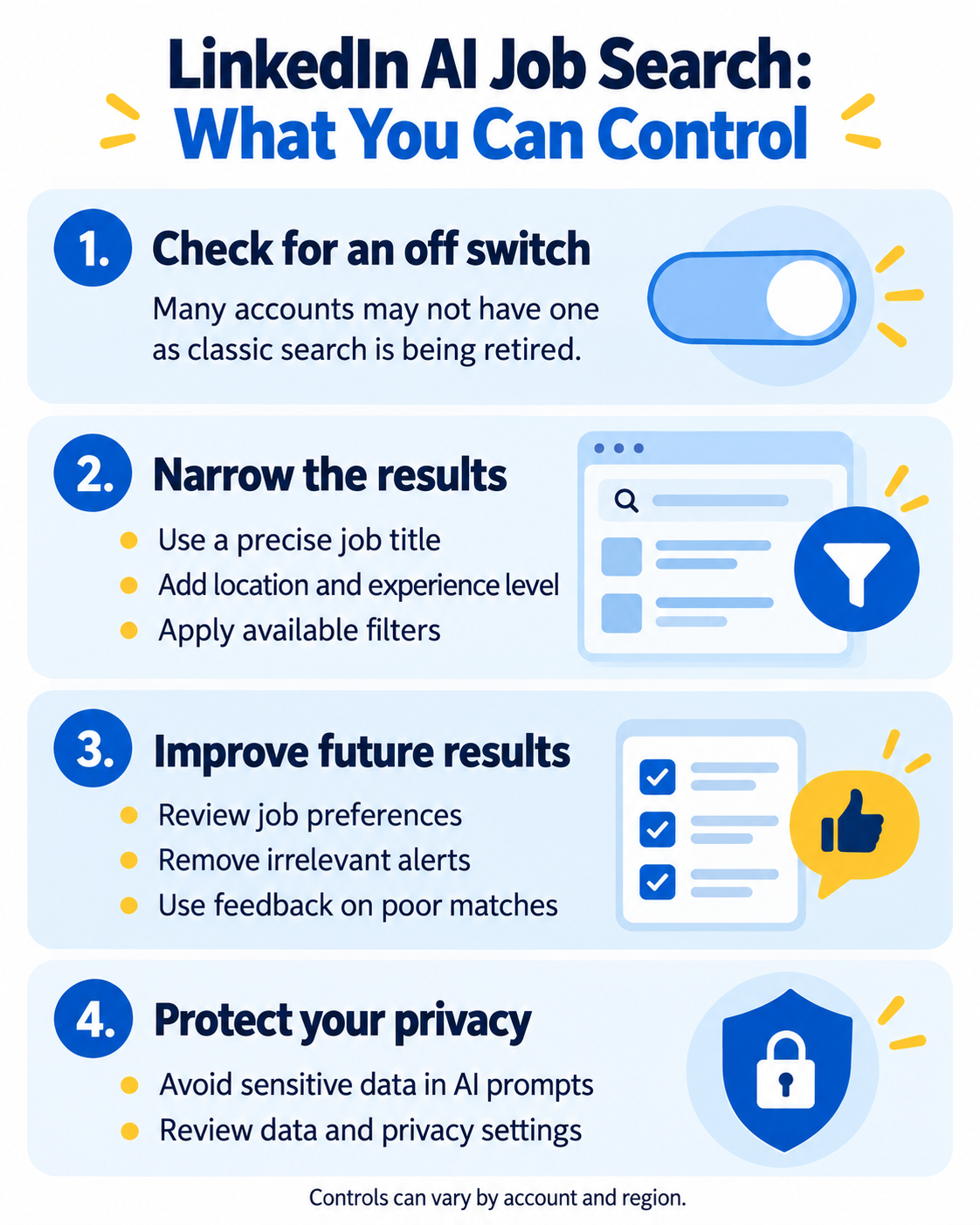
Can You Turn Off AI Job Search on LinkedIn?
As of October 2026, LinkedIn’s official help pages describe AI-powered job search as available to all members worldwide and say classic job search is being retired. The help documentation explains how to use the new search and its filters, but it does not provide a general setting for switching the Jobs search experience back to classic search.
Features can vary by account, device, language and region. If your account shows a clearly labelled option to change search modes, you can use it. If no option appears, do not assume that it is hidden in an unrelated privacy menu or that reinstalling the app will restore classic search.
What LinkedIn AI-Powered Job Search Does
Traditional keyword search looks mainly for the words you enter. LinkedIn says its AI-powered job search also interprets the meaning of a natural-language request. For example, a search for “entry-level marketing jobs in healthcare posted this week” can consider the role, seniority, industry and posting date together.
LinkedIn may also use information from your profile and search activity to personalize results. This can help surface related job titles, but it can also produce matches that feel too broad when your request or profile direction is unclear.
How to Get More Precise Results Without an Off Switch
1. Start with a specific search request
A broad request such as “marketing jobs” leaves the system with many possible interpretations. Include the role, location, level and one or two essential conditions.
Too broad: Marketing jobs
More precise: Entry-level email marketing coordinator jobs in Toronto posted in the last week
Do not add every preference to one very long prompt. Start with the requirements that would determine whether you can realistically apply, then use filters for the rest.
2. Apply the filters that are available
LinkedIn currently lists filters including Date posted, Company, Experience level, Employment type, Remote, Easy Apply, In my network and Under 10 applicants. Availability can differ, and LinkedIn says it is working to restore or add options such as verified jobs, sorting and workplace-type controls.
- Use Date posted to avoid repeatedly reviewing old listings.
- Choose an honest Experience level instead of relying on the word “junior” alone.
- Use Employment type when you only want full-time, part-time, contract or internship roles.
- Use Company when researching a defined employer list.
- Treat Easy Apply as an application-method filter, not a quality signal.
Our guide to LinkedIn job search filters explains how to combine these controls without making a search unnecessarily narrow.
3. Review your job preferences
LinkedIn can use your profile and job preferences when suggesting opportunities. In Jobs, review Preferences or Open to Work and check your target titles, locations, workplace types, employment types and availability. Remove options that no longer match your plan.
Changing these preferences does not disable AI, and it will not guarantee perfect results. It gives LinkedIn clearer information about what you want.
4. Clean up irrelevant job alerts
An old alert can keep sending roles based on a search you no longer want. Review your job alerts, remove irrelevant ones and create new alerts only after refining the search. Give each alert a distinct purpose, such as a specific job title and location.
A smaller set of focused alerts is usually easier to evaluate than many overlapping alerts.
5. Give feedback on poor matches
LinkedIn’s AI job-search help page recommends using the thumbs-up or thumbs-down feedback on results. When the option is available, use it honestly. Feedback is not an instant reset, but it gives the platform a signal that a result did or did not satisfy your search.
6. Verify every job before applying
AI matching does not confirm that a vacancy is suitable, current or trustworthy. Read the full description, check the employer, confirm the location and employment terms, and verify where the application will be submitted. Do not rely only on a match label or generated summary.
Can You Disable AI-Powered Job Insights?
AI-powered job search and AI-generated job insights are related but different features. Premium members may see AI insights on some job posts, such as explanations of potential fit or information about a company. Closing an insight panel does not turn off the main job-search system.
LinkedIn advises members to verify AI-generated responses because they can contain inaccuracies. You can simply avoid opening or using an insight prompt. If your account provides service-connection choices or AI controls, read the description carefully before changing them because regional options can differ.
Privacy: What Not to Enter in an AI Search
A job-search prompt usually needs professional criteria, not private information. Avoid entering passwords, identification numbers, medical details, confidential employer information, private contact information or any data that is unnecessary for finding a role.
LinkedIn states that some AI-powered insight features may use Microsoft technology and that text entered into certain prompt boxes may be processed to provide a response. Review the notice shown with the feature and LinkedIn’s current privacy documentation before entering personal data.
What to Do If LinkedIn AI Search Is Not Working Well
- Reduce the search to one recognizable target job title.
- Add one location and the correct experience level.
- Apply Date posted and Employment type filters.
- Remove conditions one at a time if the search becomes too narrow.
- Update job preferences and outdated alerts.
- Use feedback when results are clearly irrelevant.
- Keep a separate list of target employers and check their career pages directly.
You can also use a broader job-search workflow instead of depending on one platform. Track suitable roles, tailor applications and follow up consistently. See our guide on how to keep track of job applications.
Frequently Asked Questions
Why can’t I find the classic LinkedIn job search?
LinkedIn says it began gradually retiring classic job search in September 2026. Your account may therefore open the AI-powered experience by default, without a switch back to the previous version.
Will changing my LinkedIn language turn off AI search?
LinkedIn does not document changing language as a method for disabling AI-powered job search. Language availability can affect suggestions and feature presentation, but it is not a reliable off switch.
Can I still search with normal job-title keywords?
Yes. LinkedIn accepts keywords as well as natural-language requests. A concise job title plus location can be a useful starting point, followed by available filters.
Does using filters disable AI?
No. Filters narrow the results produced by the search experience; they do not disable the underlying AI-powered matching.
The Bottom Line
If you cannot find a setting for how to turn off AI job search on LinkedIn, you are probably not overlooking a universal switch. LinkedIn is moving members toward one AI-powered search experience. The practical response is to use precise queries, filters, accurate job preferences, focused alerts and careful verification.
For a broader step-by-step process, read how to use LinkedIn for job hunting and our LinkedIn guide for job seekers.
Sources and update note
This article was checked on October 16, 2026 against LinkedIn’s official guidance on AI-powered job search, searching for jobs and AI-powered job insights. LinkedIn can change features, filters and regional availability; check LinkedIn Help if your interface differs.